
Overview
To provide you with the best possible support and management of your Microsoft 365 environment, Backhouse Media requires administrative access to your organization’s account. This article will guide you through the simple process of creating a Global Administrator account for our team. Once completed, we’ll be able to assist you with user management, security configurations, and ongoing support without delays.
This process takes approximately 5 minutes to complete.
Prerequisites
Before you begin, please ensure the following:
You are logged into Microsoft 365 with an account that has Global Administrator privileges. This is required because only Global Admins have permission to create other administrator accounts.
If you’re unsure whether your account has the necessary permissions, contact your IT department or the person who originally set up your Microsoft 365 subscription.
Step 1: Access the Admin Center
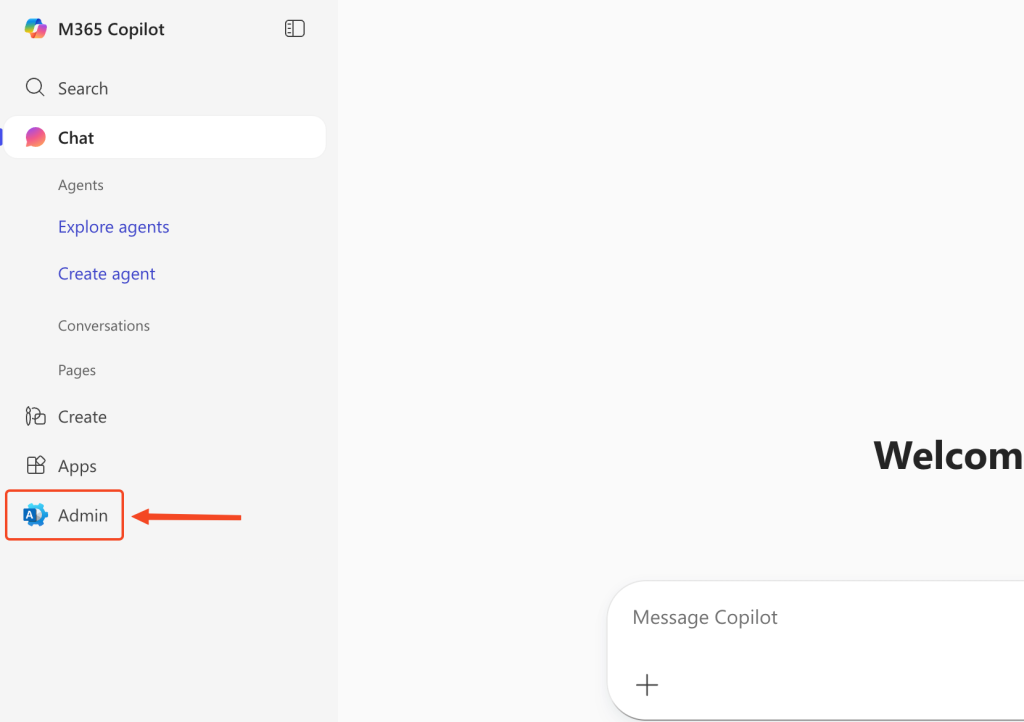
Once logged into your Microsoft 365 account, locate and click on Admin in the left-hand navigation menu.
Step 2: Add a New User
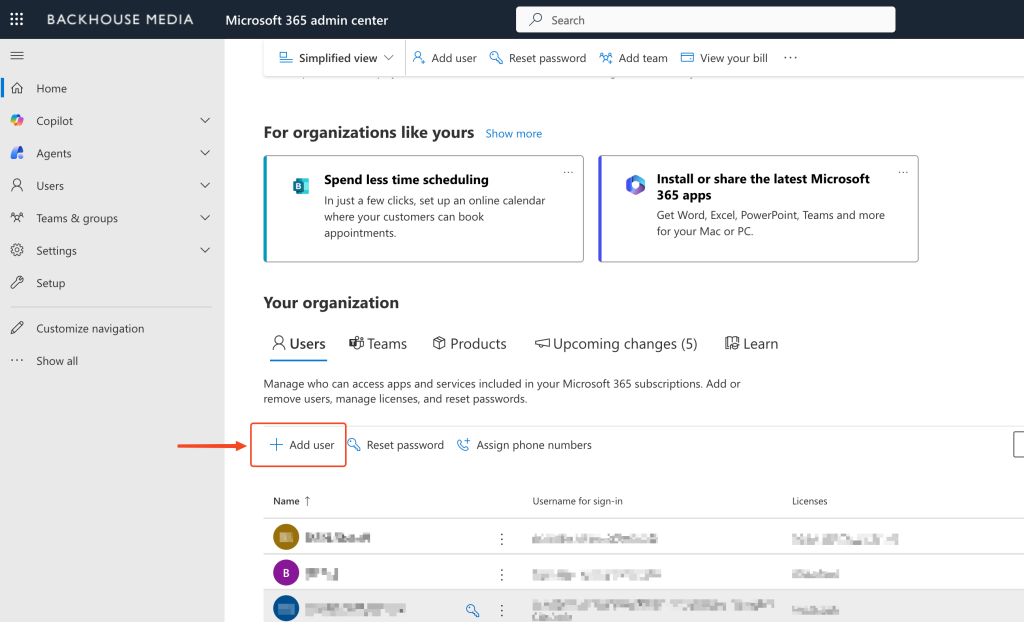
You should now be on the Your Organization page. Click the [+ Add user] button to begin creating the new administrator account.
Step 3: Set Up the Basics
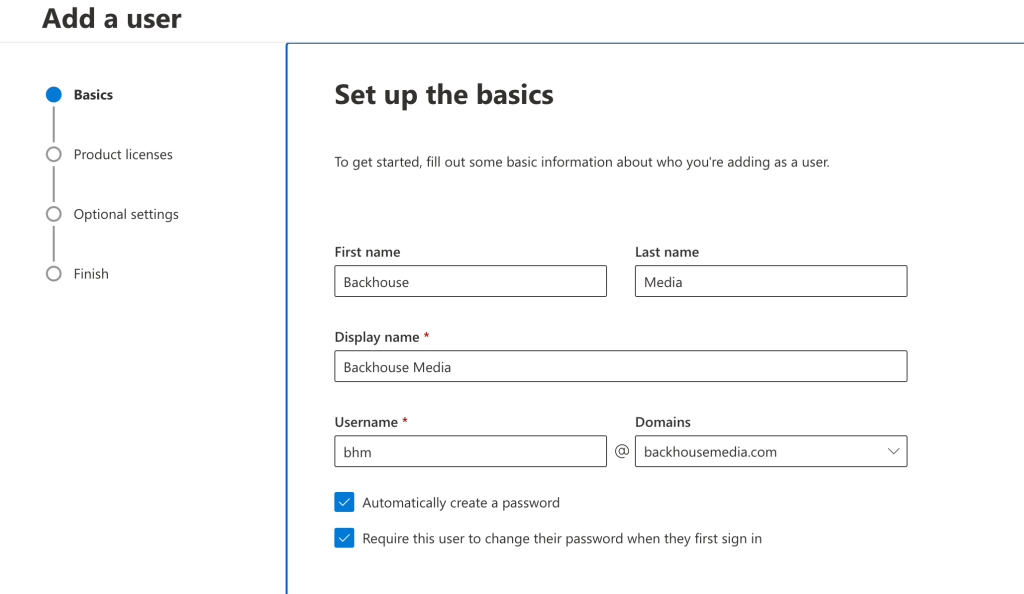
On the Add a user: Set up the basics page, enter the following information exactly as shown:
First Name: Backhouse
Last Name: Media
Display Name: Backhouse Media (this should auto-populate)
Username: bhm
Ensure the following checkboxes are selected:
☑️ Automatically create a password
☑️ Require this user to change their password when they first sign in
Once complete, click [Next].
Step 4: Assign Product License
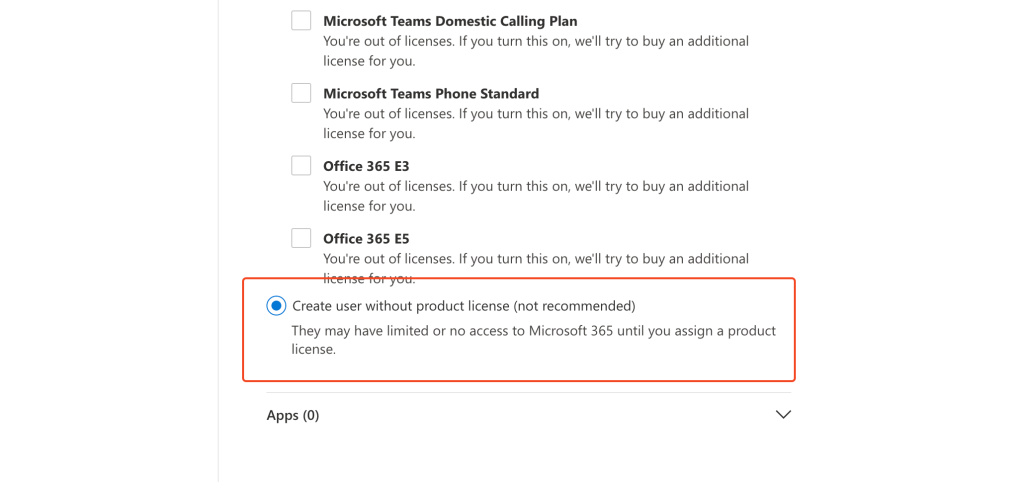
Select Create a user without a product license, then click [Next].
Step 5: Assign Admin Privileges
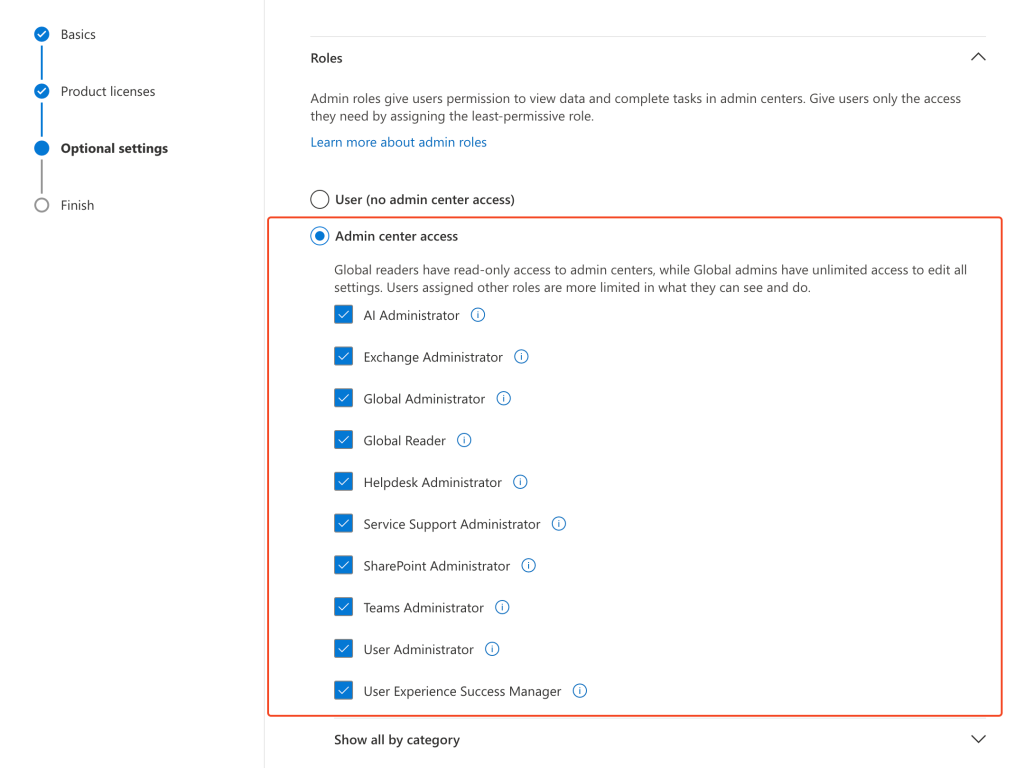
Select Admin center access, then check all available admin privileges in the list. Once all privileges are selected, click [Next].
Step 6: Finish Adding the User
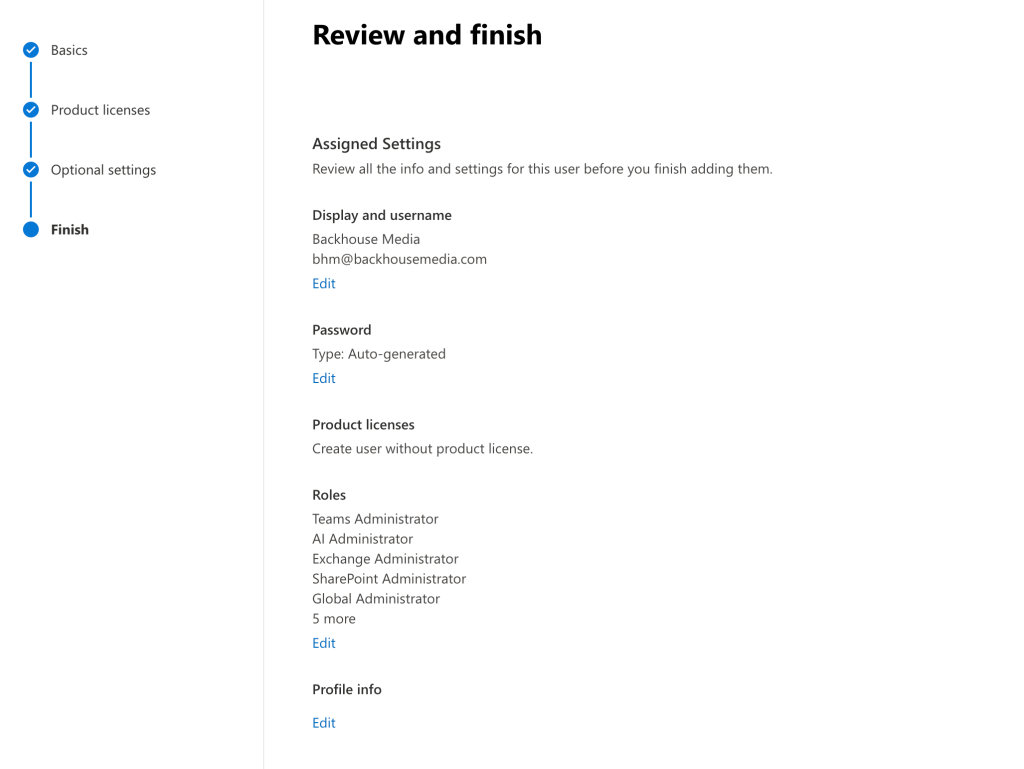
On the Review and finish page, verify the information is correct, then click [Finish adding].
Step 7: Save and Share the Password
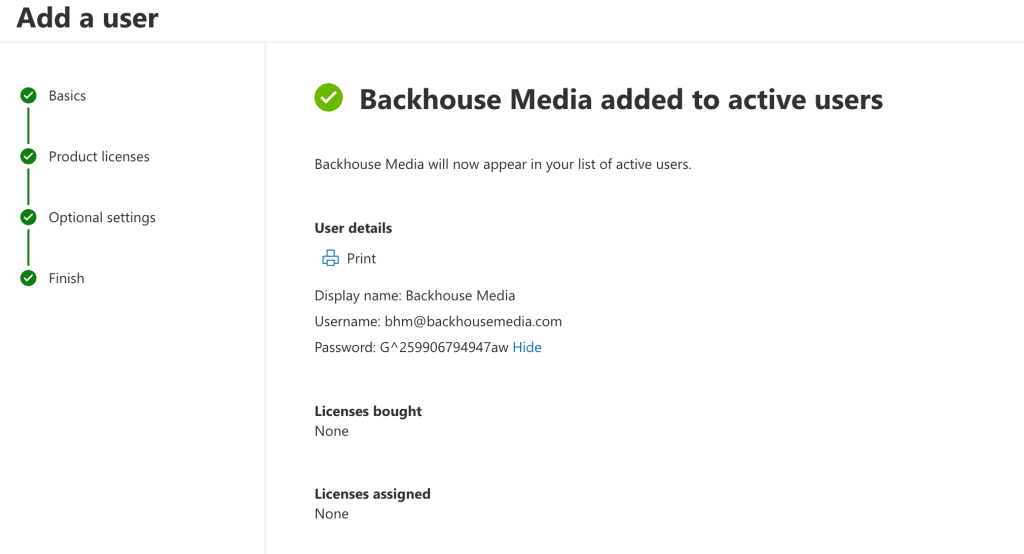
You should now see the confirmation message: “Backhouse Media added to active users.”
⚠️ Important: This is your only opportunity to save the temporary password. Do not close this screen until you have completed the steps below.
Click [Show] next to the password field to reveal the password.
To send us the credentials, choose one of the following methods:
- Click Print to save the details as a PDF
- Take a screenshot of the credentials
- Copy and paste the username and password into a message
Please send the login credentials to your Backhouse Media contact so we can complete the setup on our end.
What Happens Next?
Once we receive the credentials, we will log in and update the password to a secure one. From there, we’ll have the access needed to support your Microsoft 365 environment.
Need Help?
If you encounter any issues while adding your payment method, please contact our support team for assistance. We’re here to help ensure a smooth setup process.